
Appearance
PWA & Mobile
TiniVault works great on mobile devices. You can install it directly on your phone or tablet as an app — no app store required. This is called a Progressive Web App (PWA), which means it works like a regular app but runs in your browser.
Installing TiniVault as an App
Installing TiniVault as an app gives you:
- A home screen icon (just like a regular app)
- Full-screen mode without the browser address bar
- Faster loading on subsequent visits
On iPhone or iPad (Safari)
- Open TiniVault in Safari (must be Safari, not Chrome or Firefox)
- Tap the Share button (the box with an upward arrow) at the bottom of the screen
- Scroll down and tap Add to Home Screen
- Give it a name (e.g., "TiniVault") and tap Add
The TiniVault icon appears on your home screen. Tap it to open the app in full-screen mode.

On Android (Chrome)
- Open TiniVault in Chrome
- Tap the three dots menu (⋮) in the top-right corner
- Tap Install app or Add to Home Screen
- Tap Install to confirm
TiniVault is added to your home screen and app drawer.
On Desktop (Chrome/Edge)
- Open TiniVault in Chrome or Edge
- Look for the install icon in the address bar (a computer screen with a down arrow)
- Click Install
- TiniVault opens as a standalone window
Mobile-Optimised Features
TiniVault is designed to work well on smaller screens and touch devices.
Pull to Refresh
On mobile, pull down from the top of the page to refresh the content. This is useful after making changes on another device or when you want to see the latest updates.
Simply swipe down from the top of the main content area — a loading indicator appears, then the page refreshes.
Auto-Hiding Navigation Bar
When you scroll down on mobile, the top navigation bar automatically hides to give you more screen space. Scroll back up to reveal it again.
Touch-Friendly Interface
All buttons, dropdowns, and interactive elements are sized for comfortable touch use. You can also:
- Swipe through item thumbnails in the viewer
- Tap anywhere on a suggestion to select it in dropdowns and search results
Responsive Layout
On mobile, the sidebar navigation becomes a slide-out menu. Tap the menu icon (☰) in the top-left to open it. Tap the backdrop or the close button to close it.
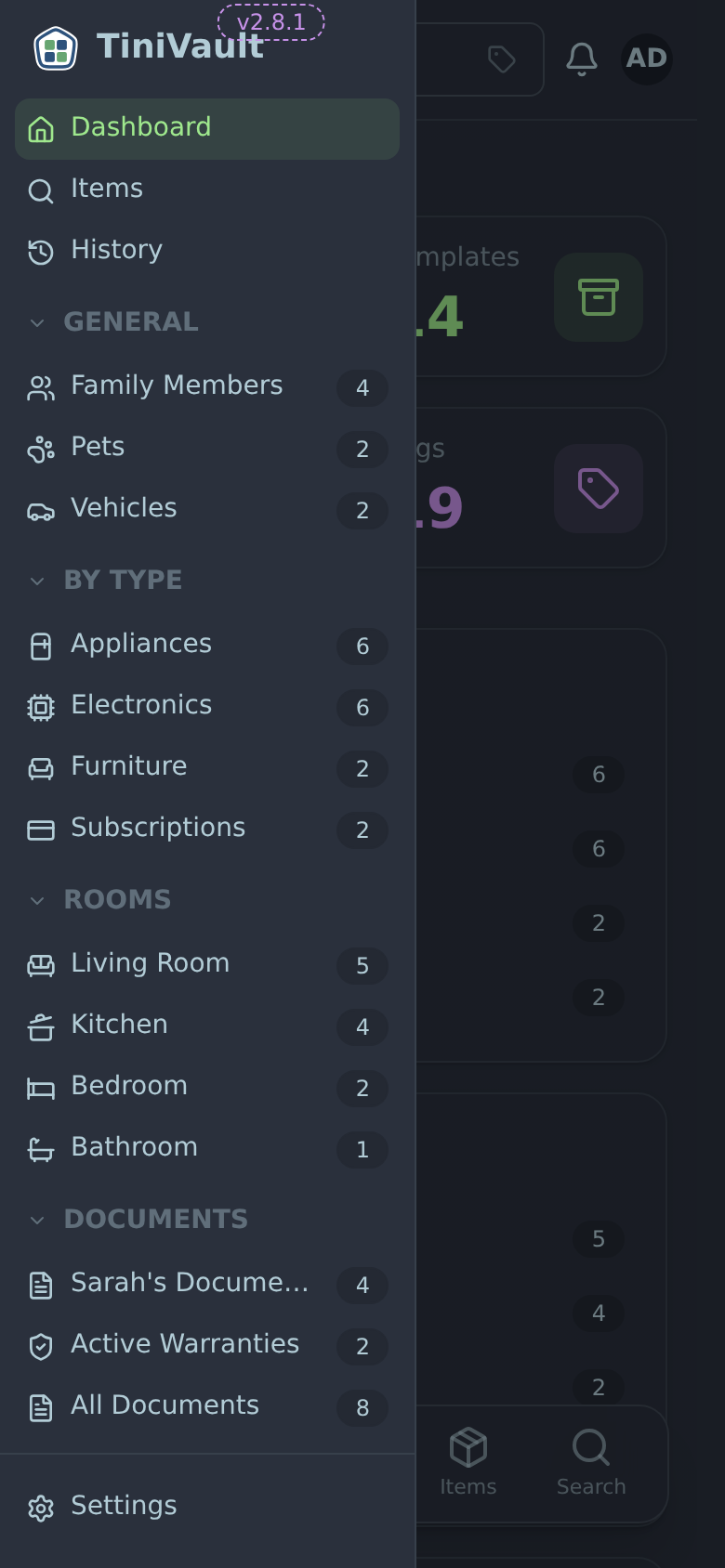
Offline Behaviour
TiniVault has basic offline support. When you lose your internet connection:
What works offline:
- Previously visited pages load from cache
- Static content (the app shell) loads instantly
What doesn't work offline:
- Loading new item data or search results (requires a live connection to the server)
- Saving new items or changes
- Any feature that needs to communicate with the server
If you're offline and try to do something that requires the server, you'll see an error. When your connection is restored, everything works normally again.
Offline Fallback Page
If you try to navigate to a page that hasn't been cached and you're offline, TiniVault shows an offline fallback page letting you know the connection is unavailable.
App Updates
When a new version of TiniVault is deployed on your server, the app will detect the update automatically.
Update Notification
A banner appears at the top of the screen saying something like "A new version is available".
To apply the update:
- Click the Reload or Update button in the banner
- The page refreshes and you're running the latest version
Updates are safe — your data is never affected. The update only changes the app's interface and features.
TIP
If you've installed TiniVault as a home screen app, updates still apply automatically — you don't need to reinstall anything.