
Appearance
AI Features
TiniVault includes optional AI features to help you add and manage items more efficiently. There are two AI-powered tools: a chat assistant you can talk to, and photo analysis that can extract item details from images.
Prerequisites
AI features require your TiniVault administrator to have configured an AI provider. If the chat button or photo analysis option is not visible, AI has not been set up on your server. Contact your administrator to enable it.
AI Chat Assistant
The AI chat assistant is a conversational helper that knows about all your items. Ask it questions in plain language and it can help you find things, summarise item details, and even create or update items.
Opening the Chat
The chat is available as a floating button in the bottom-right corner of the screen. Click the chat bubble icon to open the chat panel.

What Can the AI Do?
The AI assistant can help you with:
Finding items:
- "Show me all my warranty documents"
- "What appliances do we have in the kitchen?"
- "Find items with expiry dates in the next 3 months"
Getting details:
- "What are the specifications of the Samsung washing machine?"
- "When does the car insurance expire?"
Creating items:
- "Add a new item for the Bosch dishwasher I just bought, purchased for £450 on the 15th March"
- The AI will suggest an item with fields pre-filled — you review and approve before anything is saved
Updating items:
- "Update the warranty expiry date on the washing machine to 2027-06-30"
- The AI will show you the proposed change — you approve or reject it
Action Proposals
When the AI wants to create or modify an item, it never does so automatically — it always shows you a proposal card first:
- The AI describes what it wants to do
- An action card appears with the proposed changes highlighted
- You click Accept to apply the changes, or Reject to cancel
- Only after you accept does TiniVault make any changes
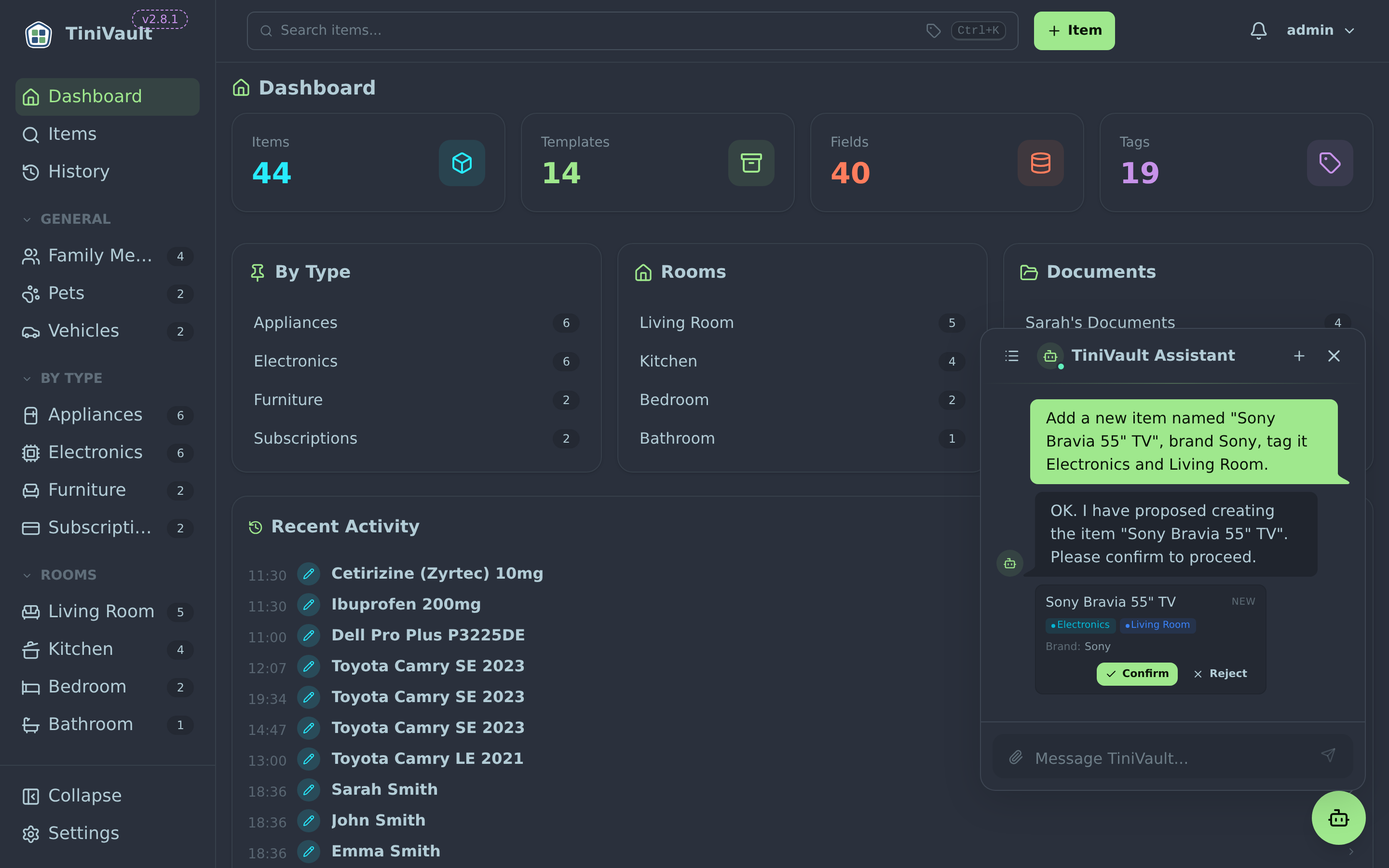
This means you're always in control — the AI assists but never acts without your approval.
Managing Conversations
The AI remembers context within a conversation. To start a fresh conversation (for a different topic):
- Click the New Conversation button at the top of the chat panel
- Give it a name (optional) for easy reference later
To switch between previous conversations:
- Click the Conversations icon or list button
- Select a conversation from the list
- The full conversation history is restored

Tips for Better Results
- Be specific: "Find warranties expiring before July 2025" gets better results than "find old warranties"
- Mention field names: "Items where the Expiry Date is within 30 days" helps the AI use the right filters
- Review proposals carefully: Always check the AI's suggested field values before accepting
- Use it for discovery: Ask "what items do we have tagged as #appliance?" to explore your data
AI Photo Analysis
Instead of manually typing item details, you can take a photo of an item (or its label/receipt) and let the AI extract the information for you.
How to Use Photo Analysis
- Click + to open the New Item dialog
- Click Analyse Photos
- Upload one or more photos:
- Drag and drop images onto the upload area
- Click to browse and select files
- On mobile, use the camera or gallery
- Click Analyse
- The AI examines the photos and suggests:
- An item name
- Field values (model number, serial number, specifications, price, etc.)
- Review the suggestions — edit any values that look wrong
- Click Accept to apply the suggestions to the new item form
- Add tags, adjust fields as needed, and save
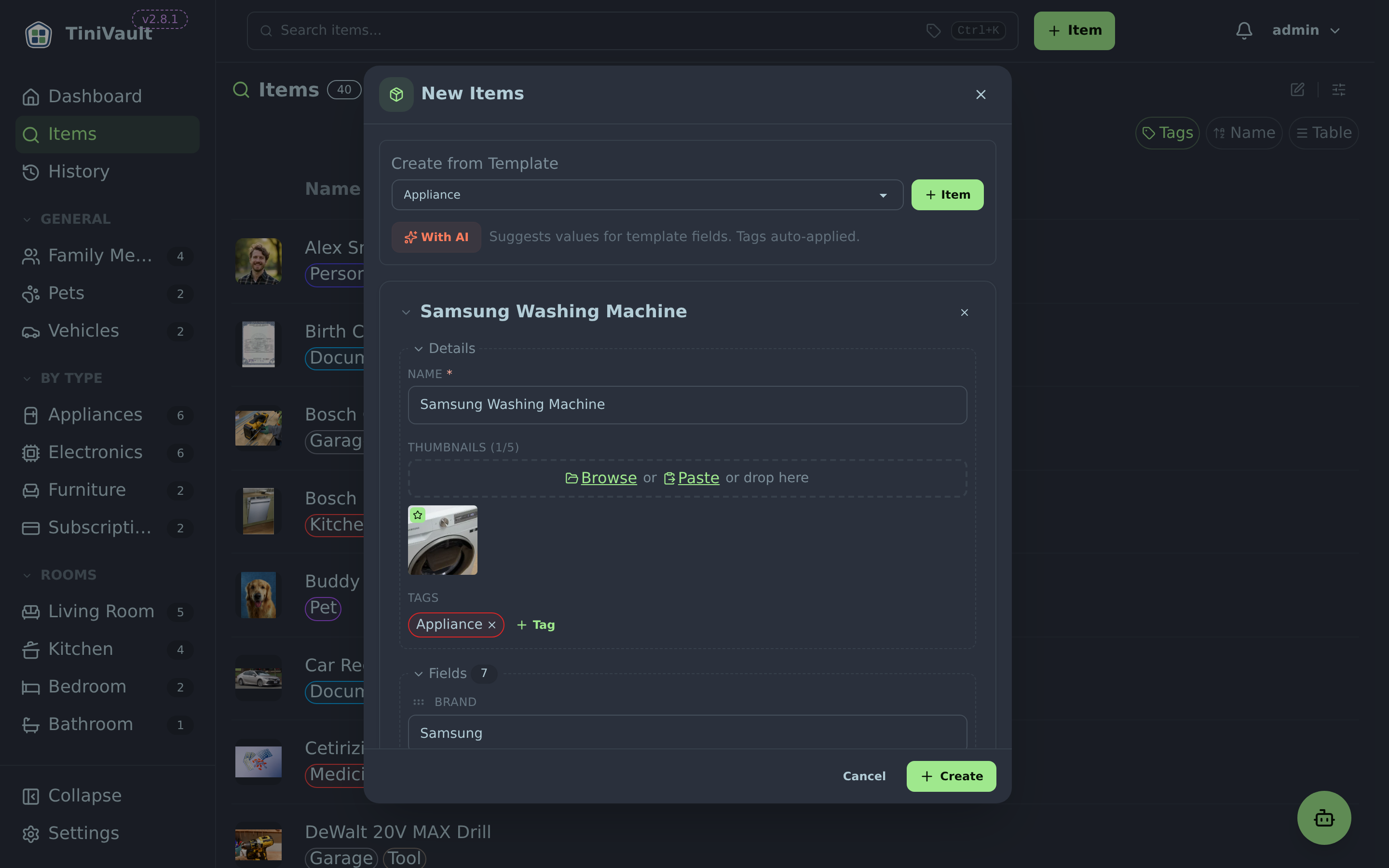
Supported Image Formats
The photo analysis accepts common image formats: JPEG, PNG, WebP, and HEIC (iPhone photos).
Tips for Better Analysis
- Include the label or specifications plate — the small plate on appliances usually has the model number, serial number, and electrical specs
- Use good lighting — clear, well-lit photos give better results
- Multiple angles — uploading 2-3 photos from different angles can help the AI gather more details
- Receipt photos — a photo of the purchase receipt works great for capturing price and purchase date
TIP
Even if the AI doesn't get everything right, it saves you from typing the most common details. Just correct the few fields that are wrong and you're done much faster than starting from scratch.