
Appearance
History & Audit Trail
TiniVault automatically keeps a complete record of every change made to your items. This means you can always see what changed, when it changed, and what the value was before.
What Is the History?
Every time an item is modified, TiniVault records:
- What changed — the field name or property that was updated
- Before and after values — what the value was before and what it is now
- When it changed — the date and time of the change
- What type of change — created, updated, tags added or removed, custom fields added/changed/removed
This audit trail gives you confidence that your data is accurate and lets you trace the history of any item.
Item History
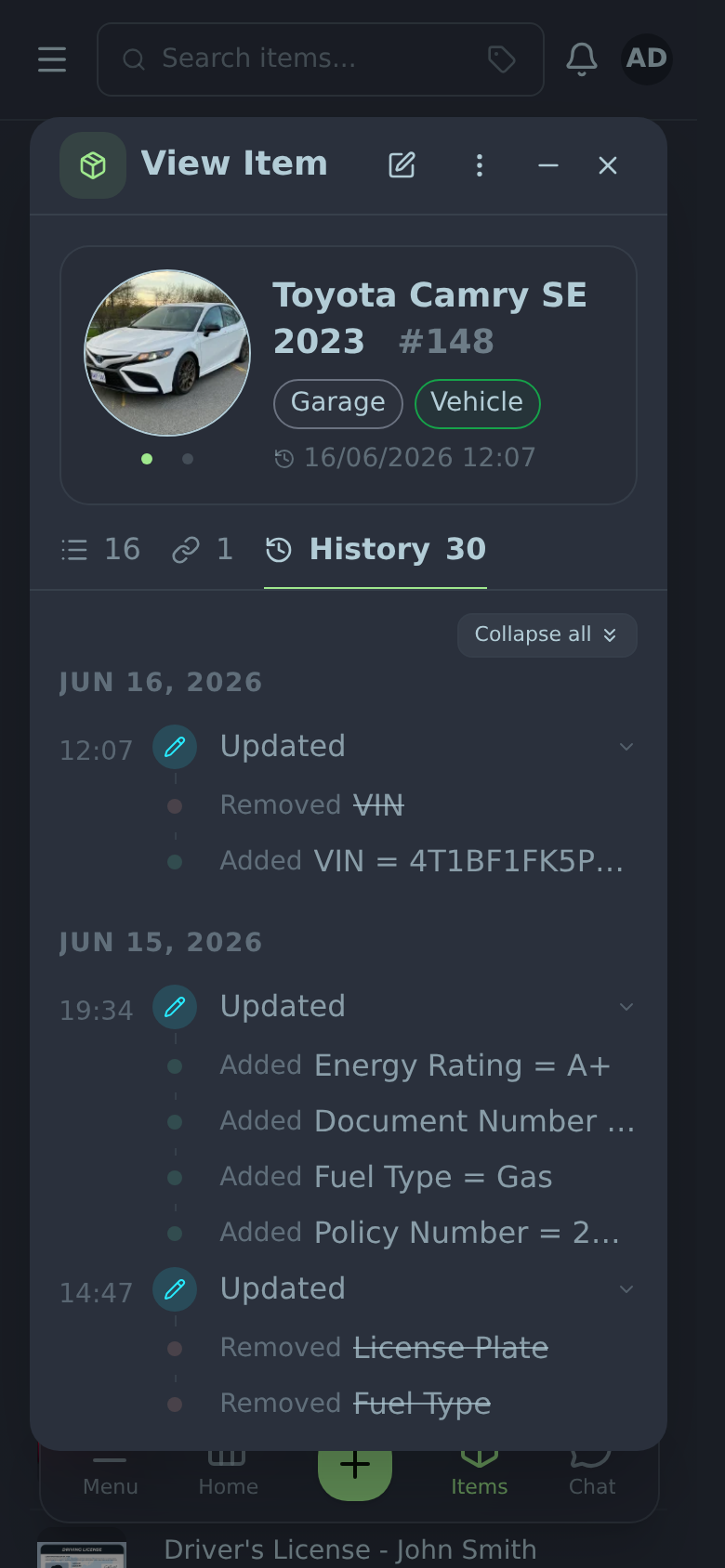
Every item has its own history. To view it:
- Open an item (click it in the search results)
- Look for the History tab or section in the Item View dialog
- The history shows all changes to that item in reverse chronological order (newest first)
Each history entry shows:
- The type of change (e.g., "Field updated", "Tag added", "Created")
- The field name that changed
- The before value and after value side by side
- The timestamp of the change

History Count Badge
On the item cards in search results, you may see a small number badge indicating how many history events the item has. This gives you a quick sense of how frequently an item has been updated.
Global History Feed
The History page shows all changes across all items in your vault — a single timeline of activity.
To access it: click History in the sidebar navigation.
What you'll see
- Changes grouped by date (today, yesterday, last week, etc.)
- Each group shows all the item changes that happened on that date
- Items that had multiple changes at the same time are grouped together
- Relative timestamps ("5 minutes ago", "2 hours ago", "3 days ago")
Scrolling Through History
The history feed loads automatically as you scroll down — no need to click "Load more". Just keep scrolling and older history entries appear.

Understanding History Entries
Created
When an item is first created, a "Created" event is recorded. This marks the starting point of the item's history.
Field Updated
When a field value changes, you'll see:
- The field name (e.g., "Purchase Price")
- The old value crossed out
- The new value highlighted
For example: "Purchase Price: £750 → £850"
Tags Added / Removed
When tags are added to or removed from an item, this is recorded as separate events showing which tag was affected.
Custom Field Changes
Per-item custom fields are tracked just like catalog fields. You'll see a separate entry when a custom field is added, when its value changes, and when it is removed — each showing the field name and its typed before/after values (including renames and type changes).
Archived / Restored
When an item is archived or restored, an "Archived" or "Restored" event is recorded so you can see when it was set aside and brought back.
Grouped Changes
If multiple fields are updated at the same time (e.g., when you edit an item and save), all those changes are grouped together under a single timestamp so the history doesn't get cluttered.
TIP
Use the item history to verify when a warranty expiry date was set, when a price was last updated, or when a document was linked. It's your permanent record of what happened and when.